Hierarchical Task Analysis table
Safe Task is made up of a Hierarchical Task Analysis (HTA) table and an associated diagram. This guide shows you how to set up the table, which in turn builds your HTA diagram. Whether you work from the table or the diagram, each element updates to reflect the other.
In this tutorial, we’ll cover building the table (add, edit and delete columns; copy, paste and split row values), metadata (copy and paste; display on the diagram) and table navigation (the search bar and keyboard shortcuts).
Build the table
Safe Task has three column types for entering data. The differences are outlined below.
Add a Text column
Text columns are best for descriptive data.
Step 1: Click + and choose Text.
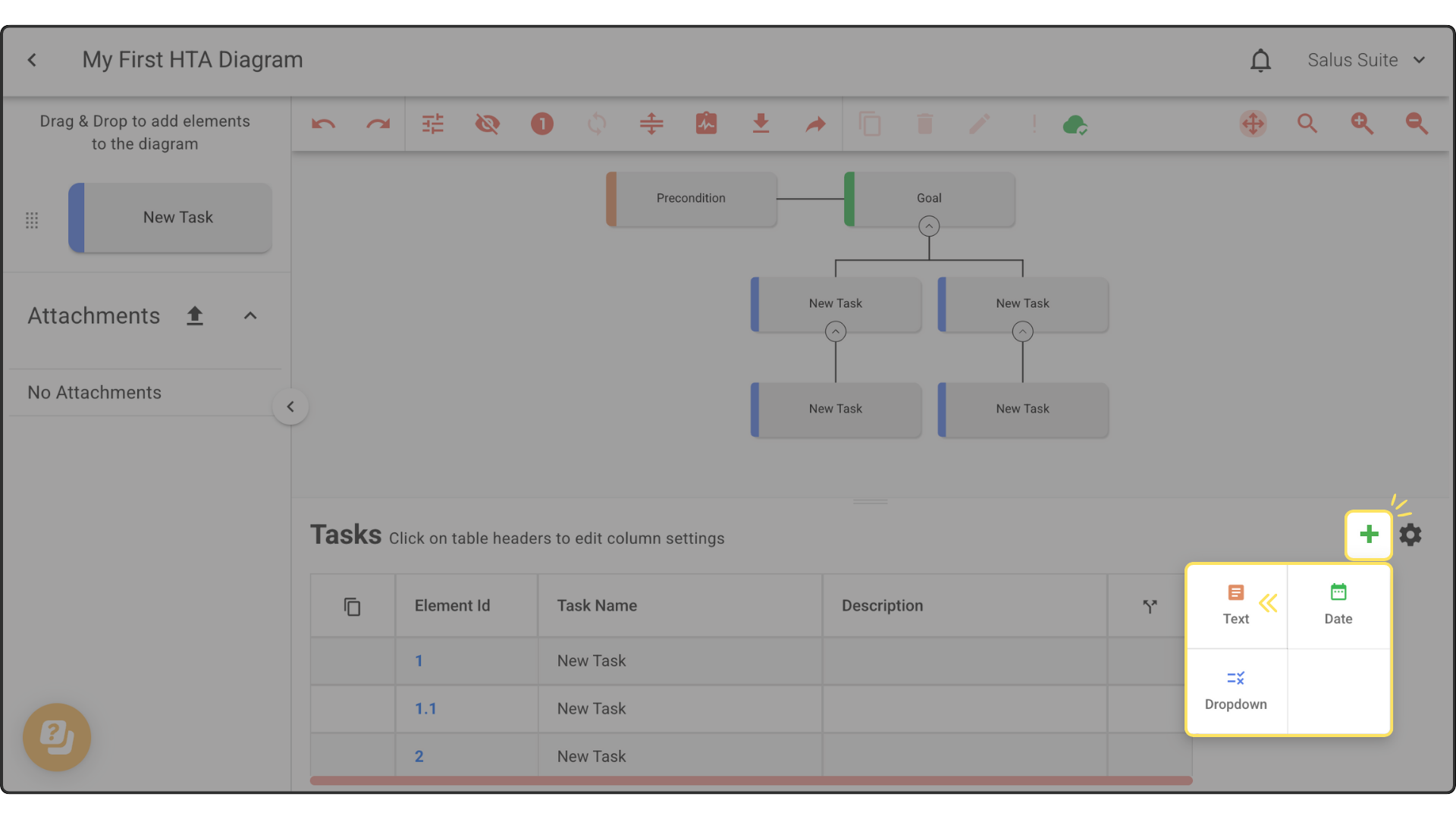
Step 2: In the pop-up, enter a name, choose a colour and click SAVE. The new column appears on the right of the table, after the task splitter.
Add a Date column
Date columns are best for important dates.
Step 1: Click + and choose Date.
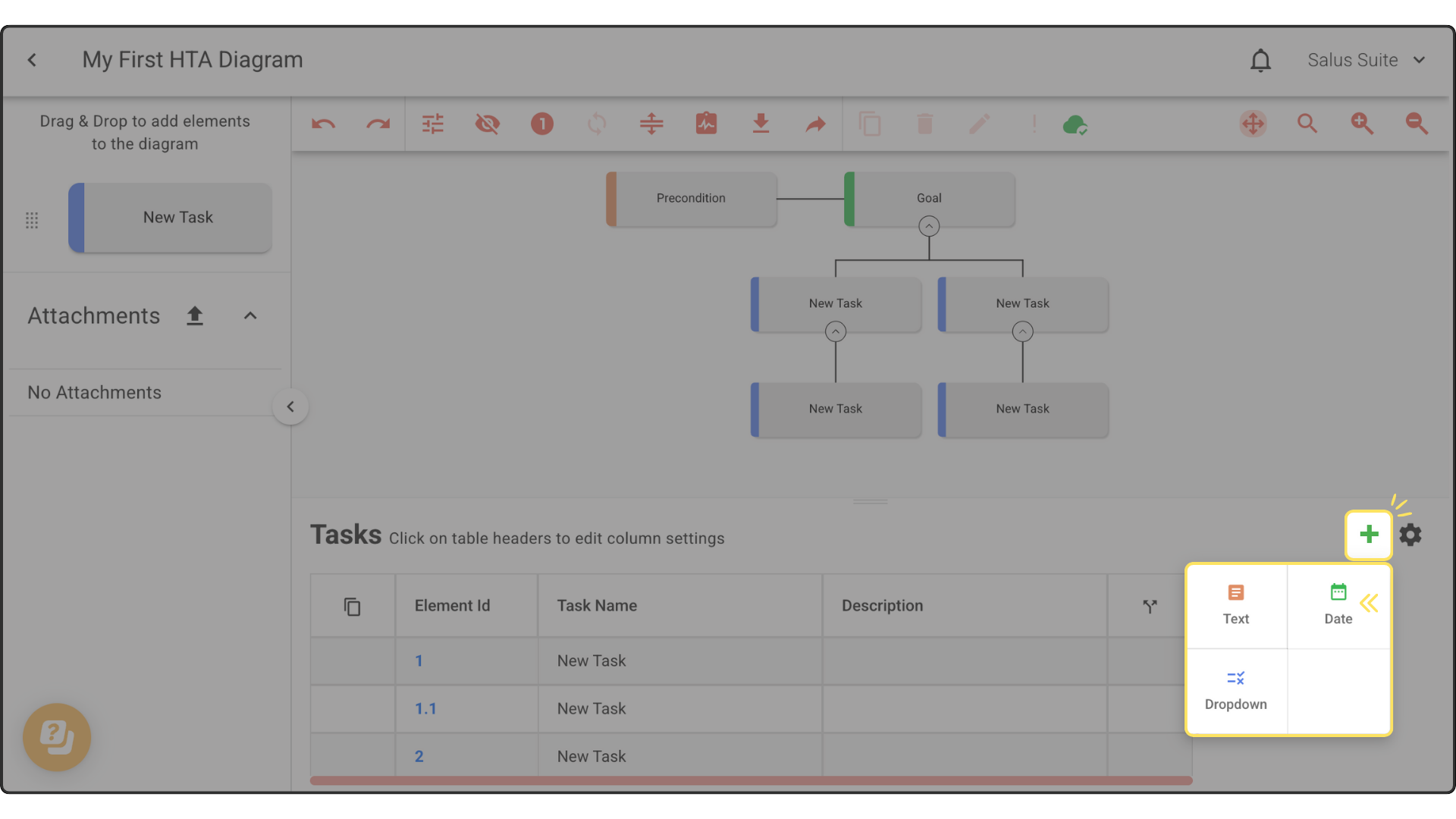
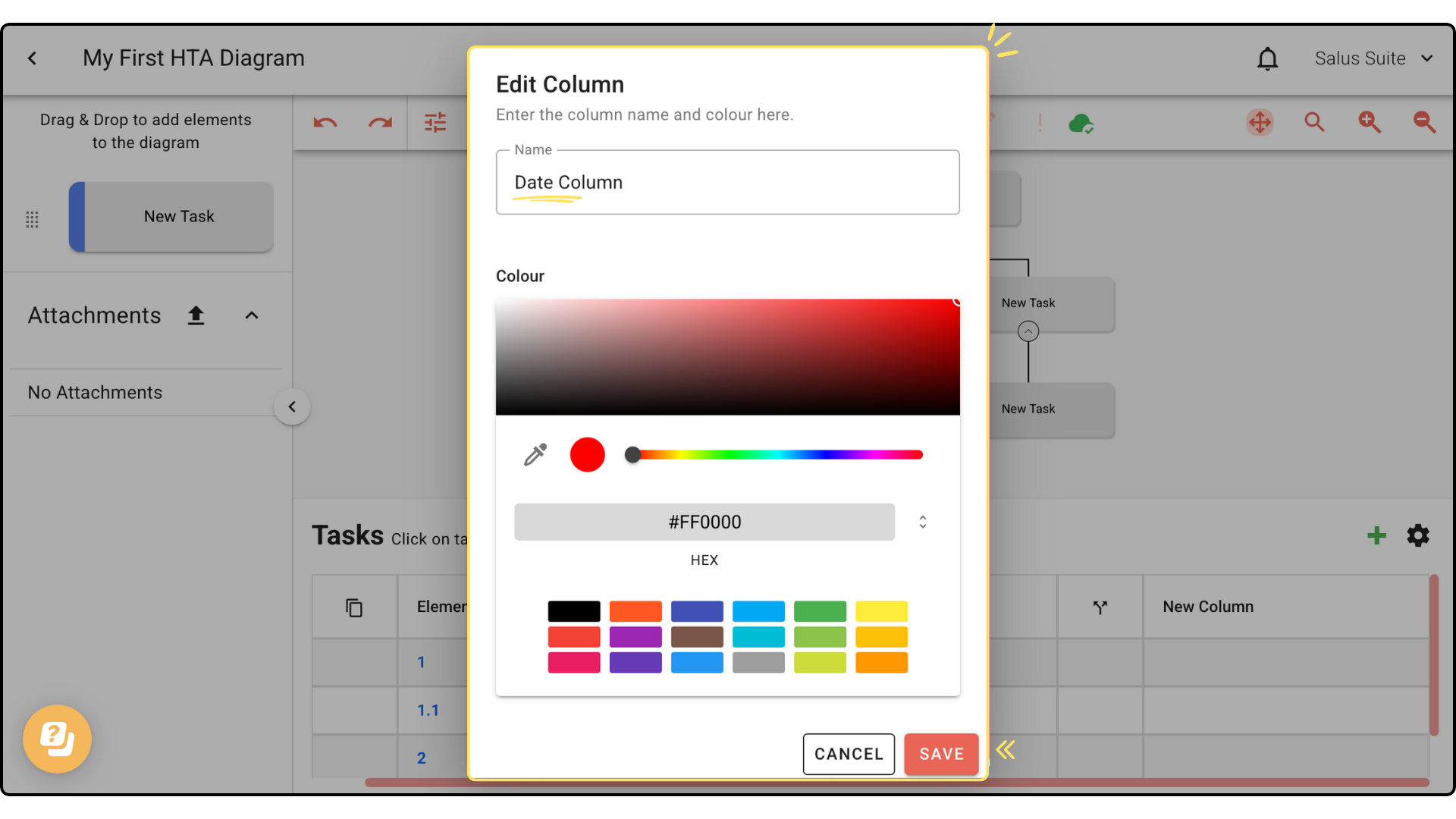
Step 2: In the pop-up, enter a name, choose a colour and click SAVE. The new column appears on the right of the table, after the task splitter.
Add a Dropdown metadata column
Dropdown metadata columns are best for standardised or categorised information. In Safe Task, metadata is displayed in coloured boxes for visibility.
Step 1: Click + and choose Dropdown.
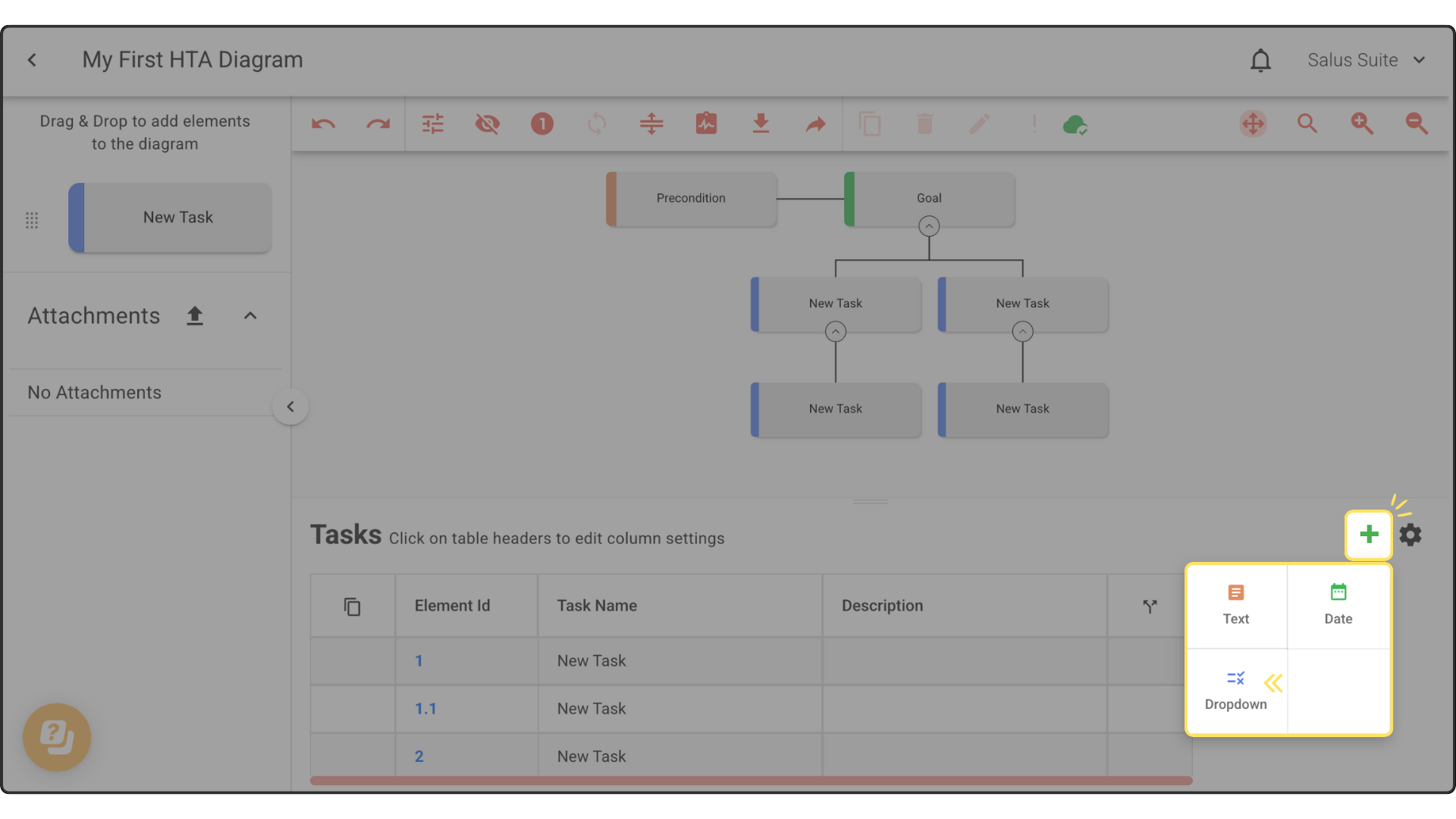
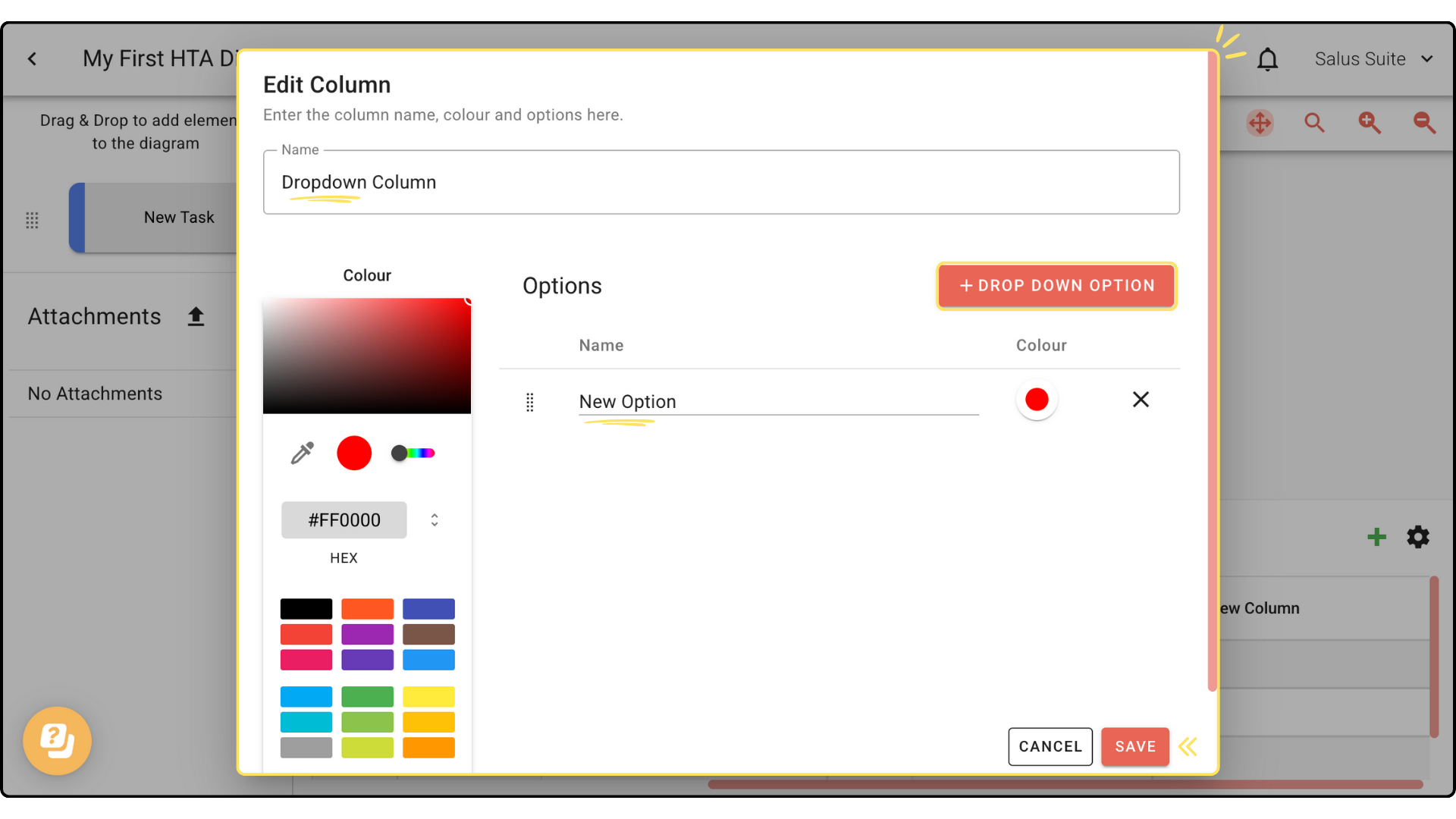
Step 2: Enter a name for the column and choose a colour.
Step 3: Enter a name for the first dropdown option (a metadata category) and choose a colour.
Step 4: Click + DROPDOWN OPTION to add another option, then name it and choose a colour. Repeat for as many options as you need.
Step 5: Click SAVE.
Edit a column
Step 1: Click the settings cog.
Step 2: Click the edit icon beside the column you want to change.
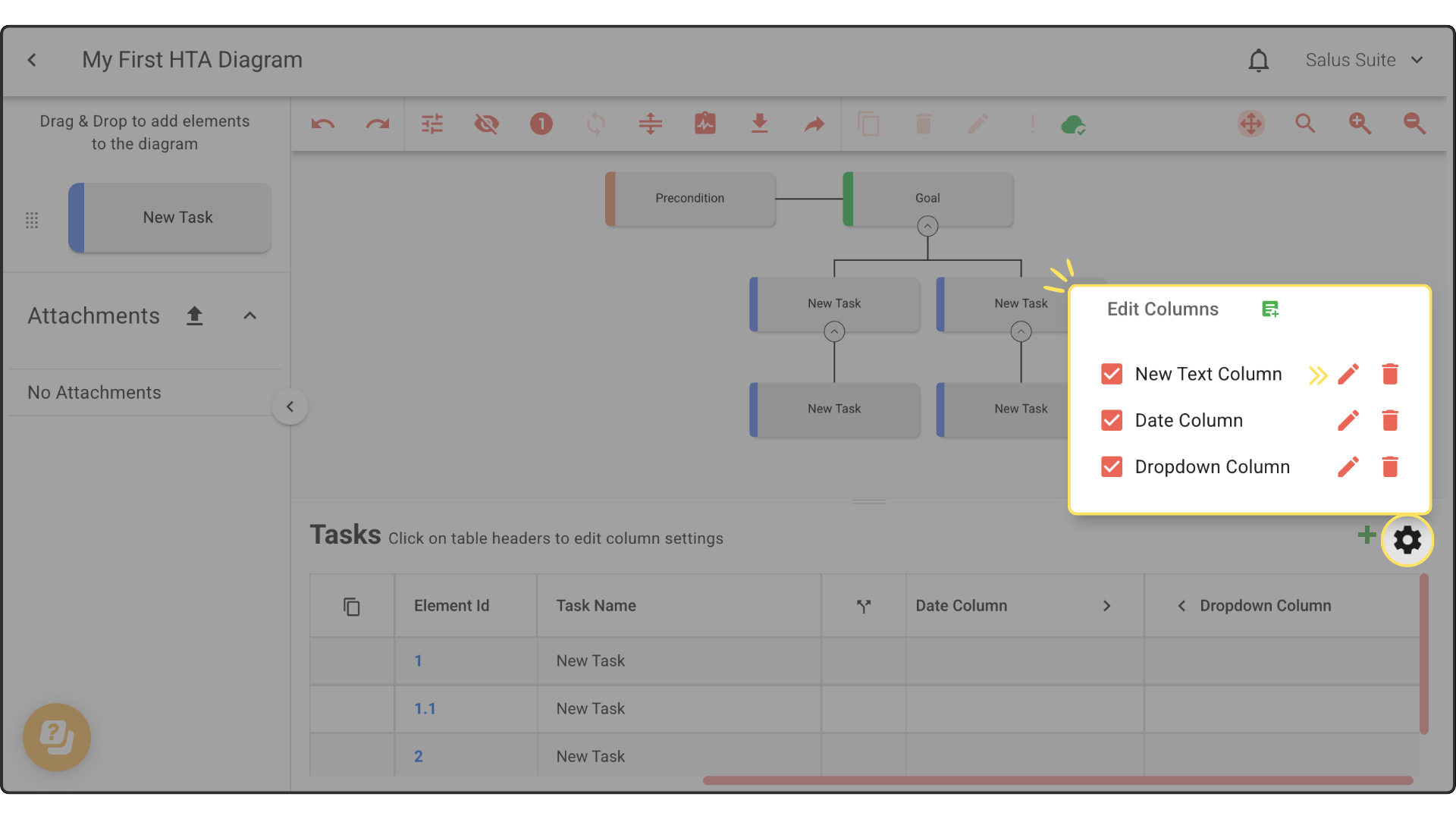
Step 3: In the pop-up, rename the column and choose a colour, then click SAVE.
Delete a column
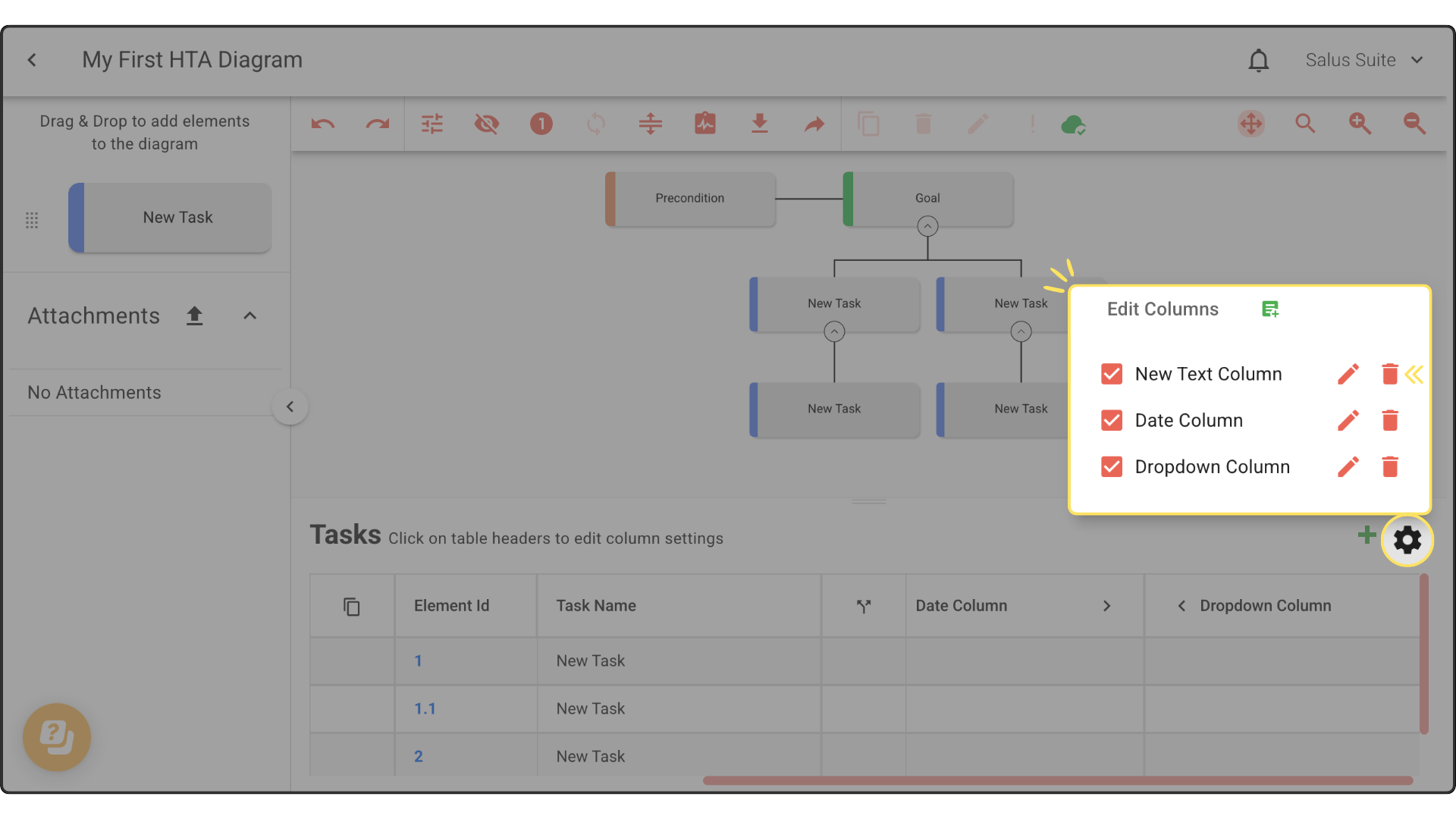
Step 1: Click the settings cog.
Step 2: Click the delete icon beside the column you want to remove. This permanently deletes the column and cannot be undone.
Copy and paste row values
Quickly duplicate data across rows.
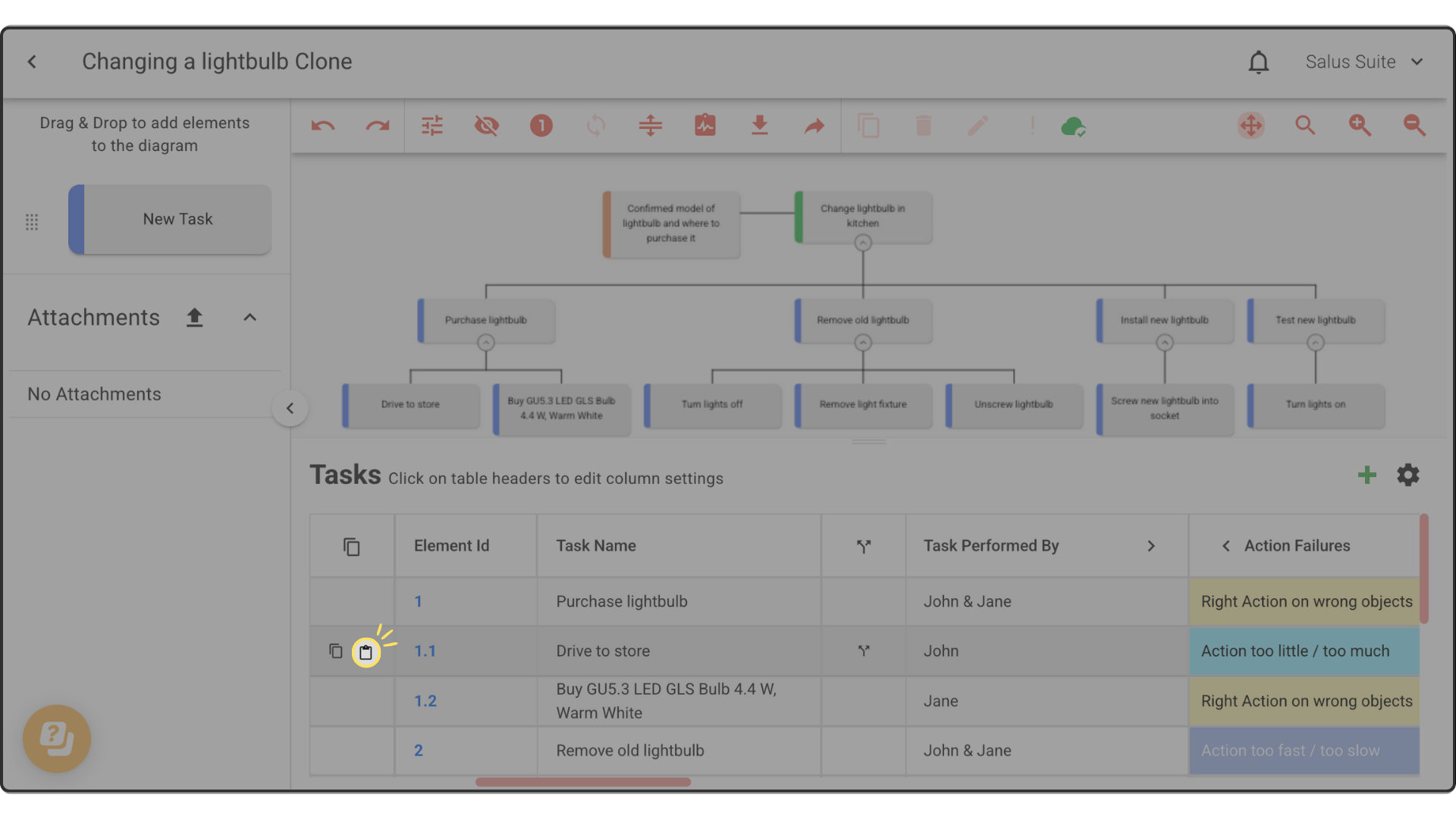
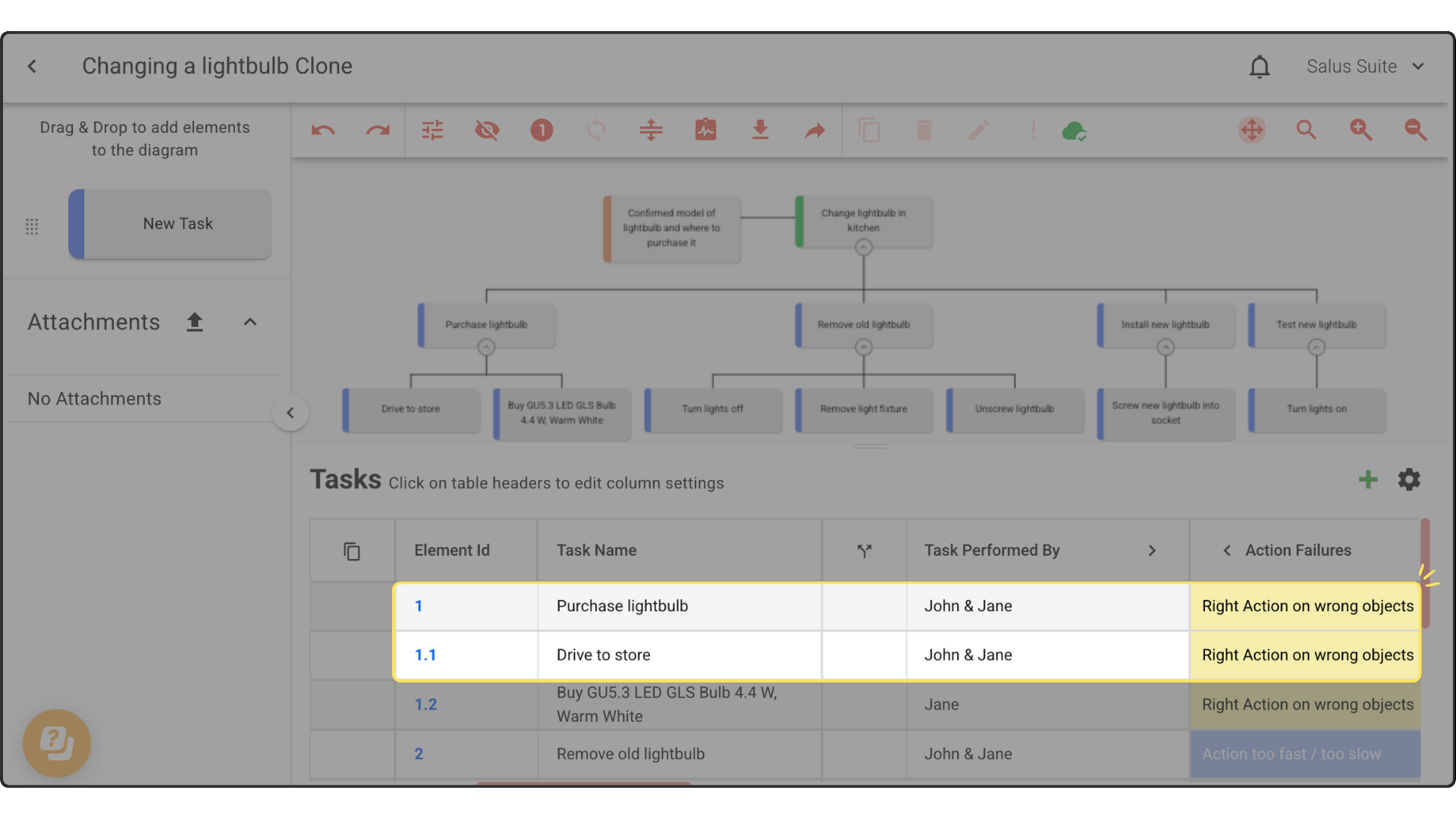
Step 1: Click the copy icon on the row you want to copy.
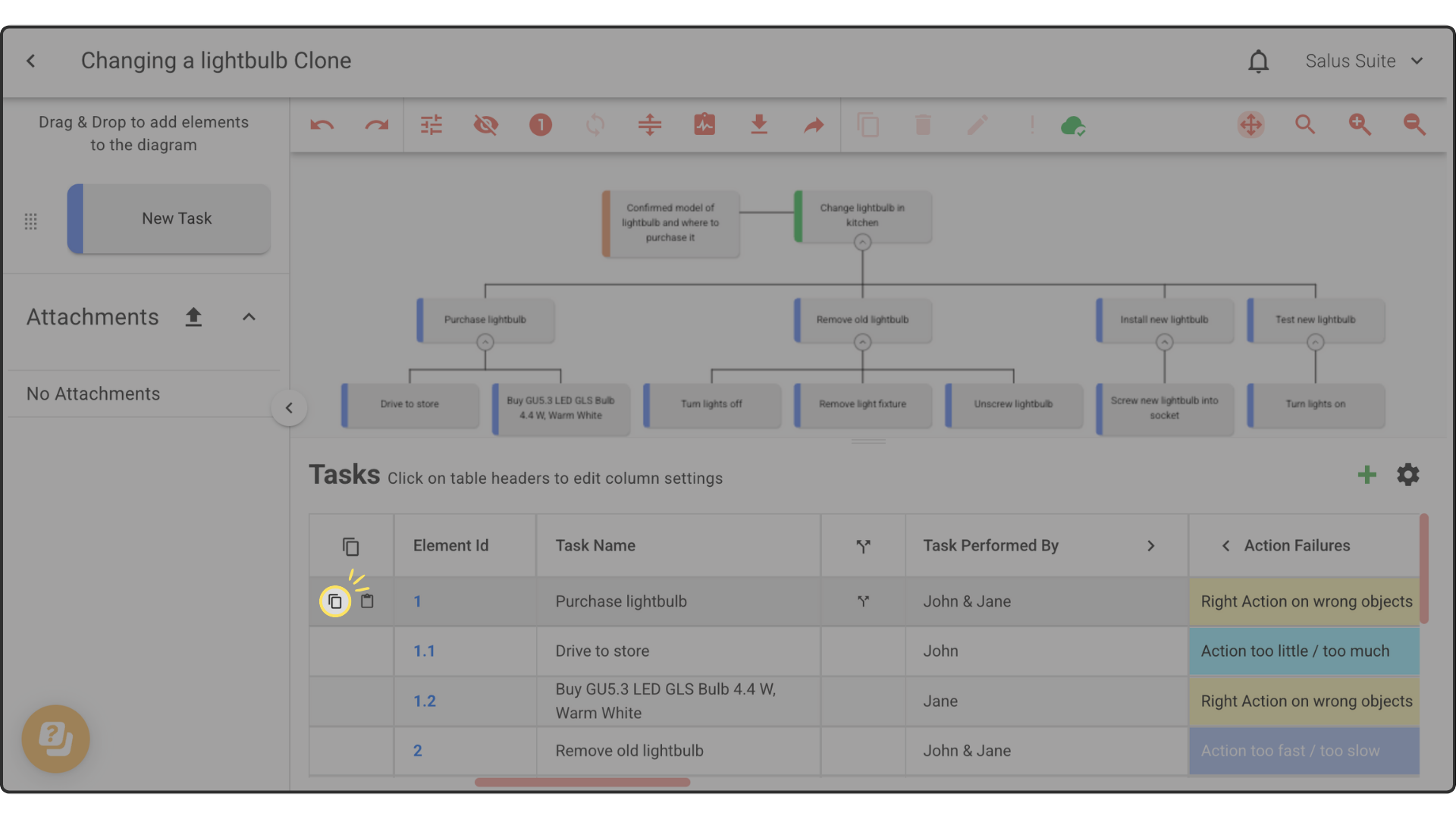
Step 2: Go to the target row and click paste. Every column value except the task name is pasted.
Split rows
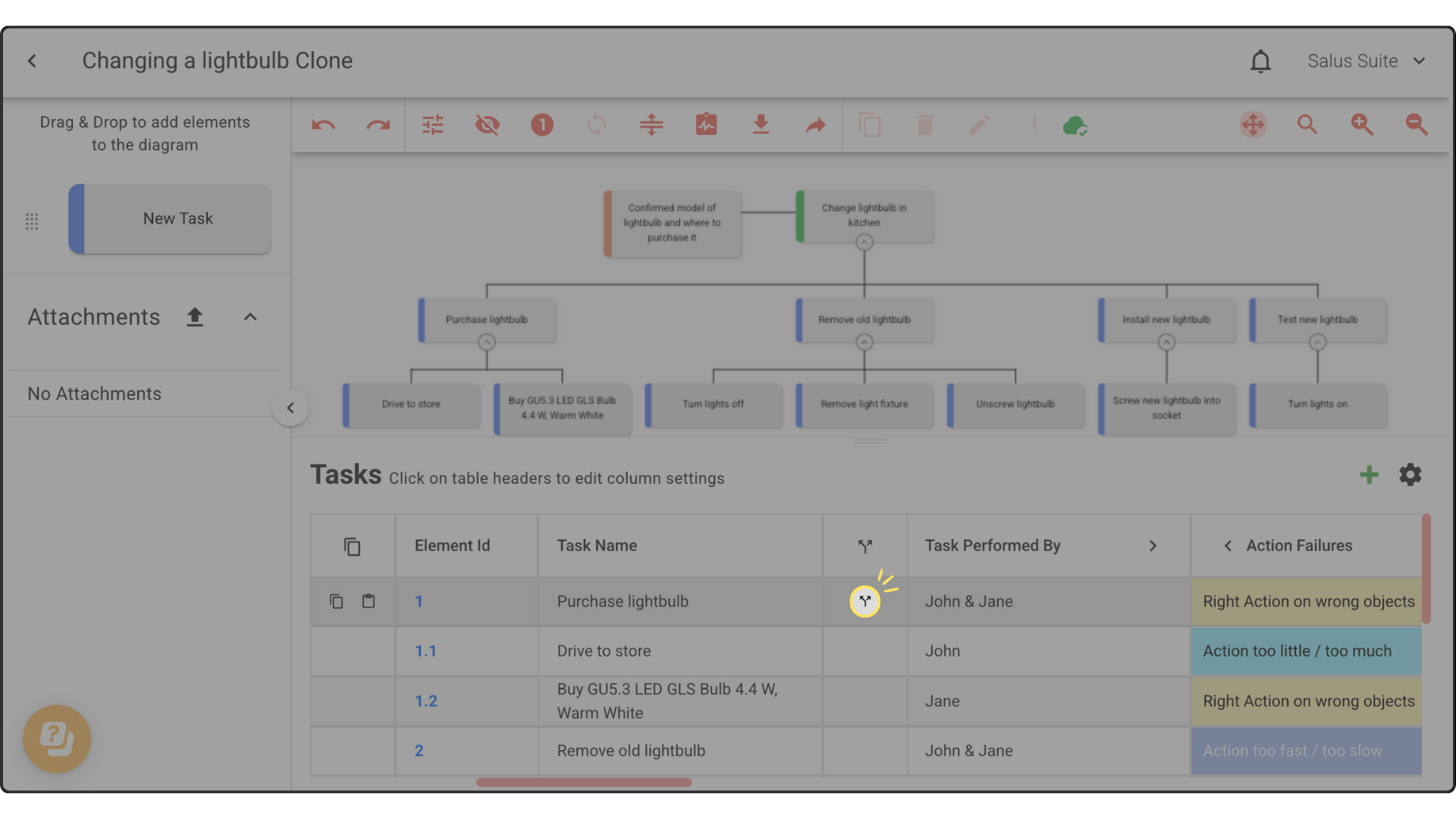
Splitting a row lets you apply multiple values to one task - for example, analysing multiple failure modes.
Step 1: Click the split rows icon in the table to add a row to a task. The new row appears within the task, to the right of the splitter.
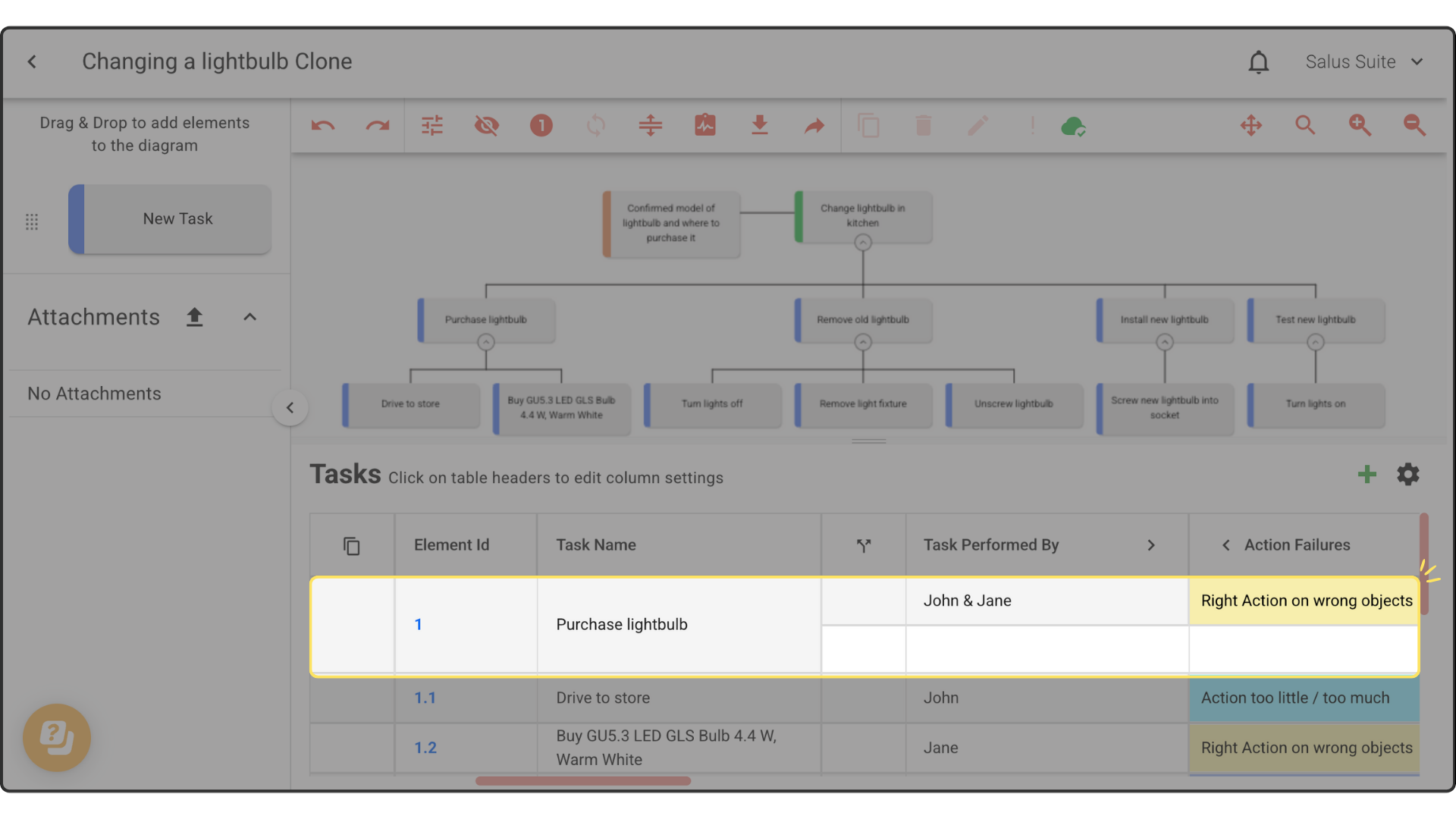
Step 2: Split a row as many times as you need by clicking the splitter icon again.
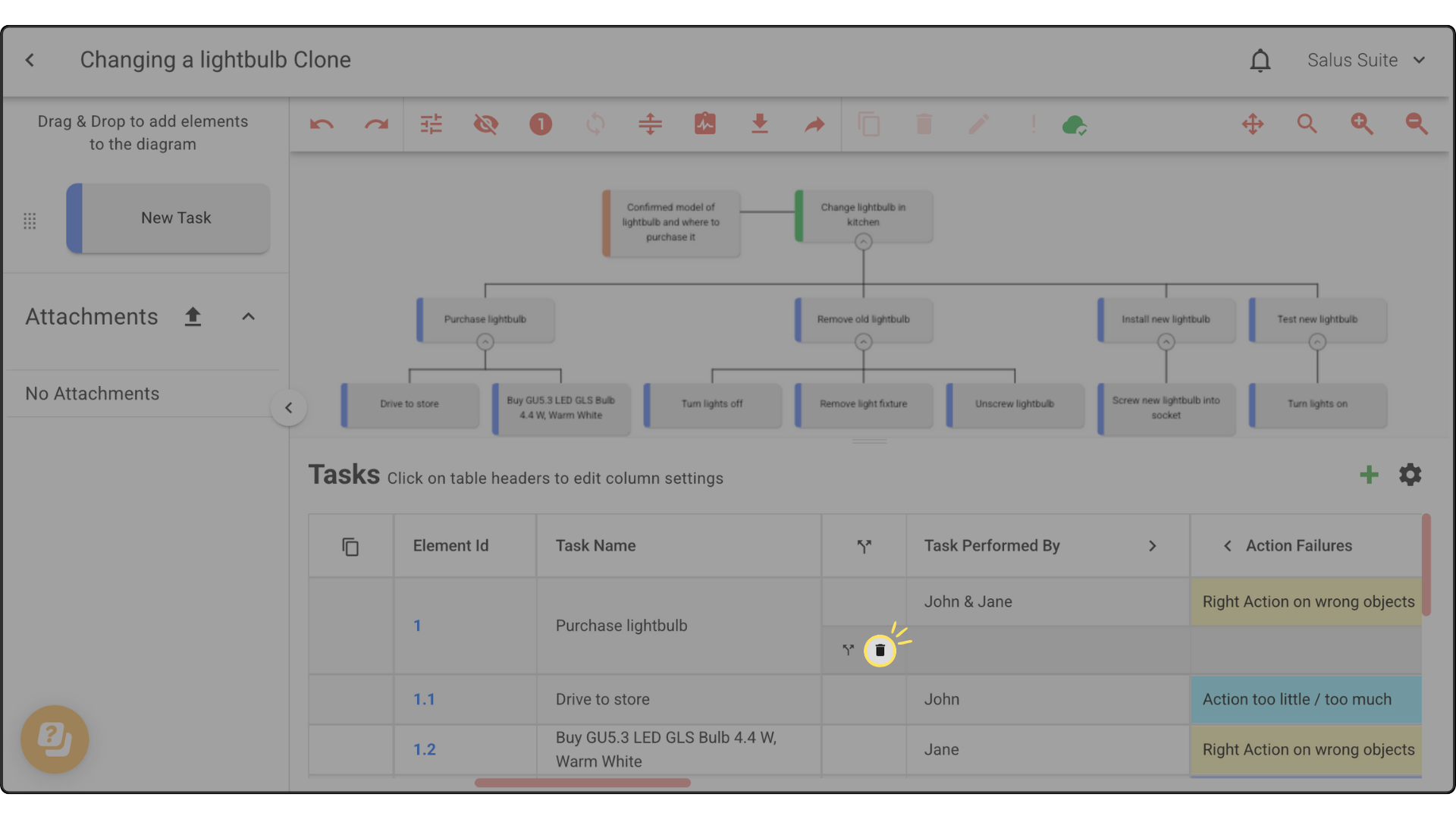
Step 3: To delete a row, click the delete icon.
Copy and paste metadata values
Duplicate metadata values across tasks.
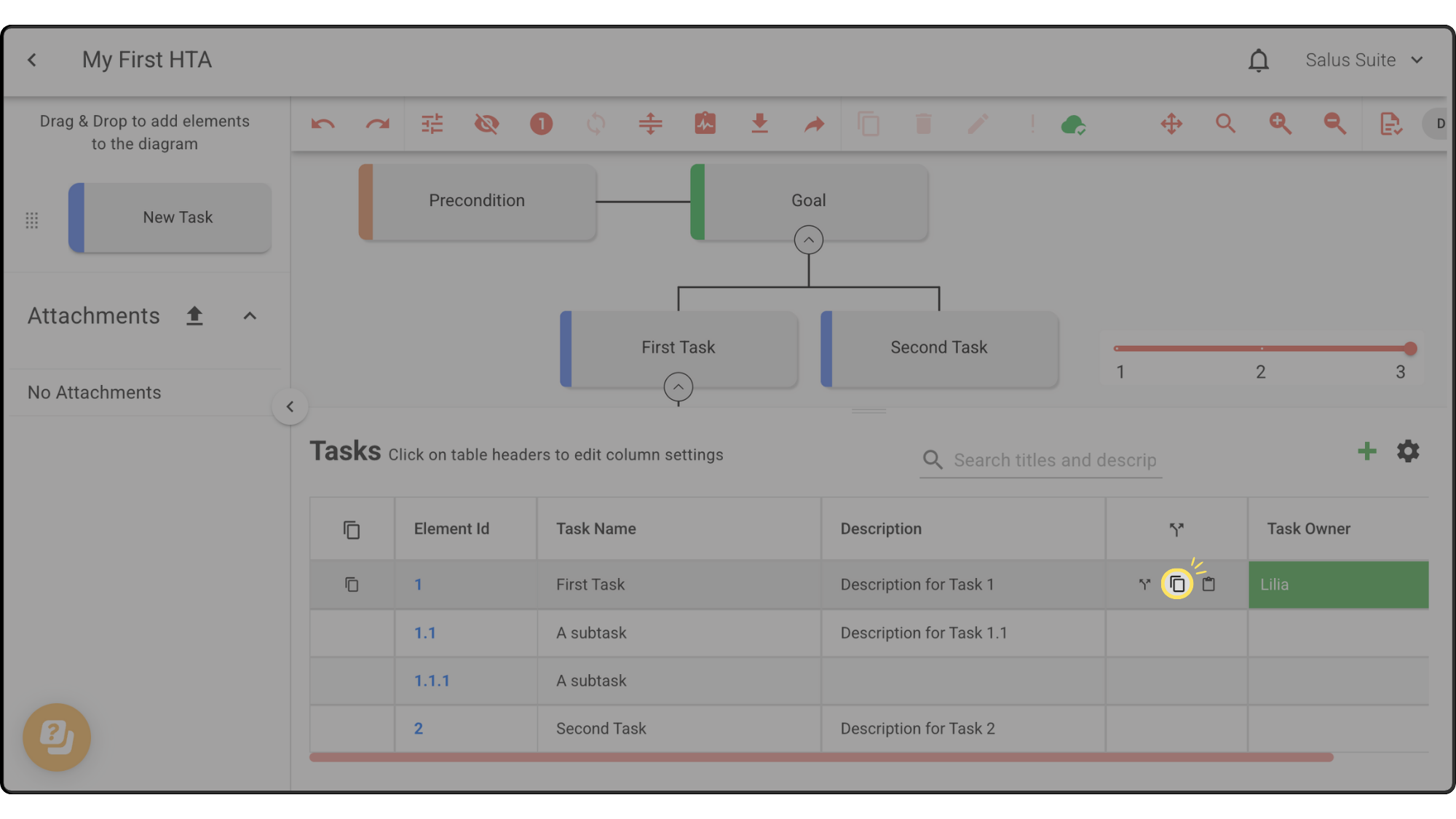
Step 1: In the split rows column, click the copy icon on the row you want to copy metadata from.
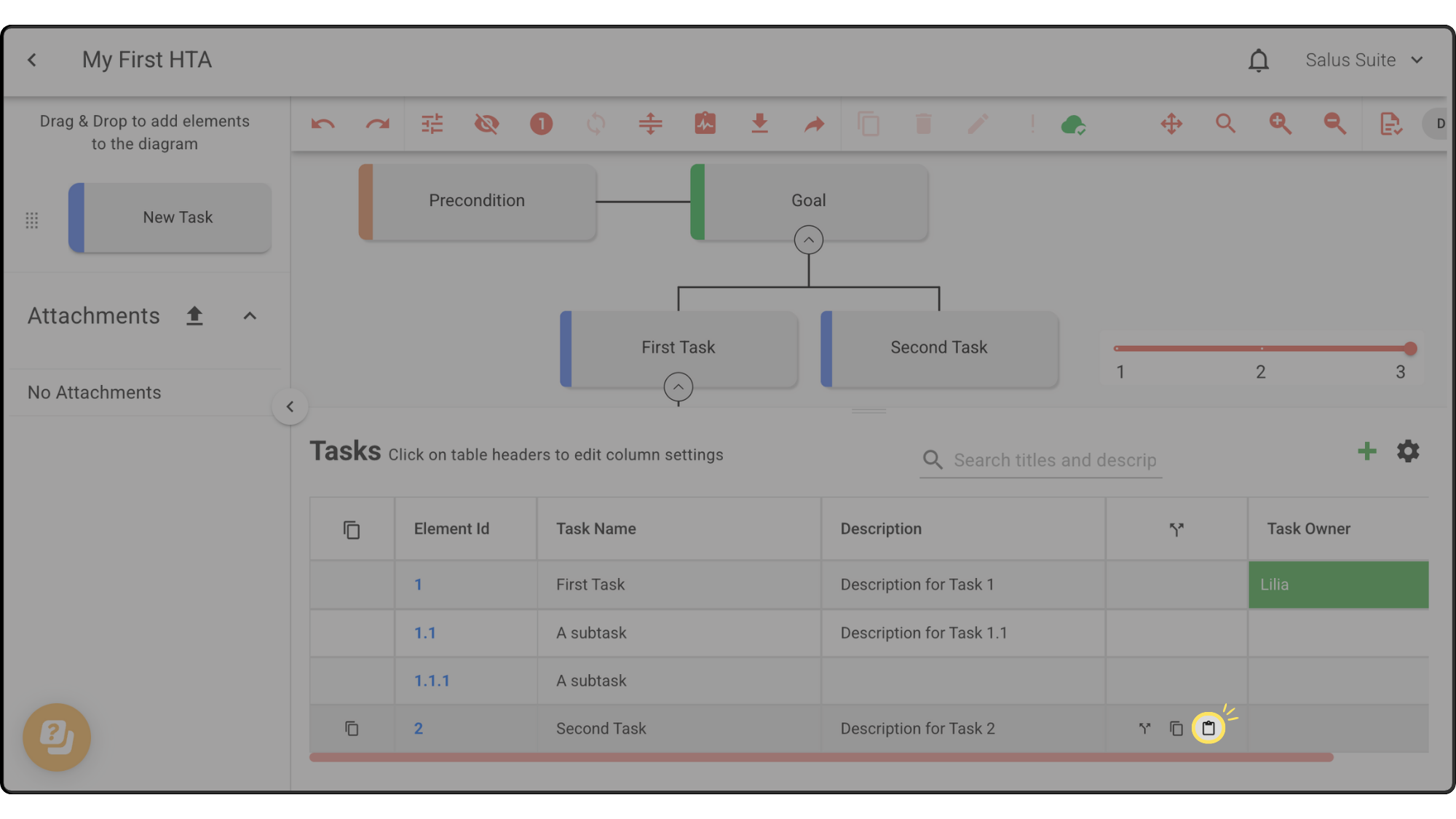
Step 2: Hover over the target row and click paste. The metadata values are copied across.
Display metadata on the diagram
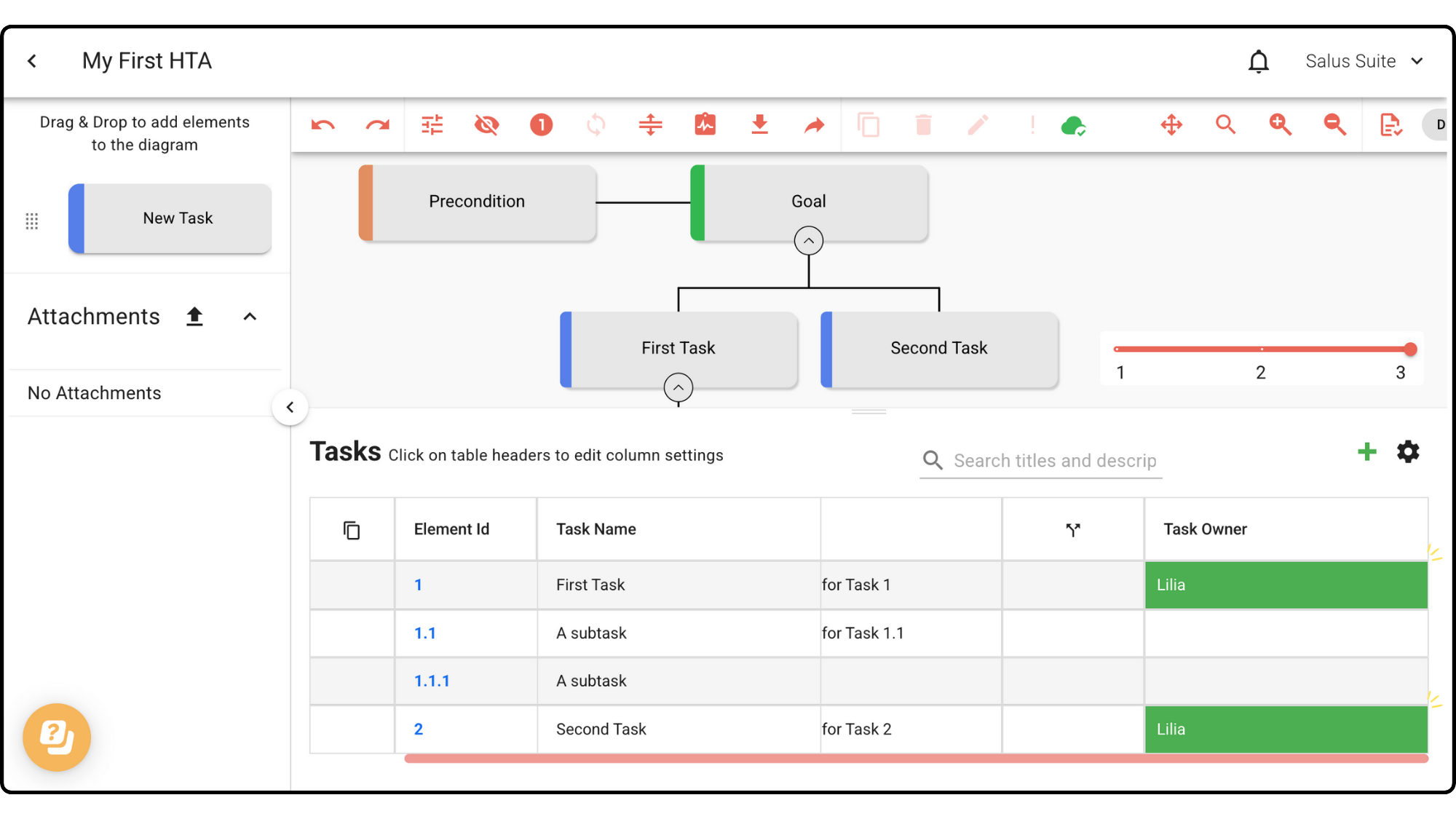
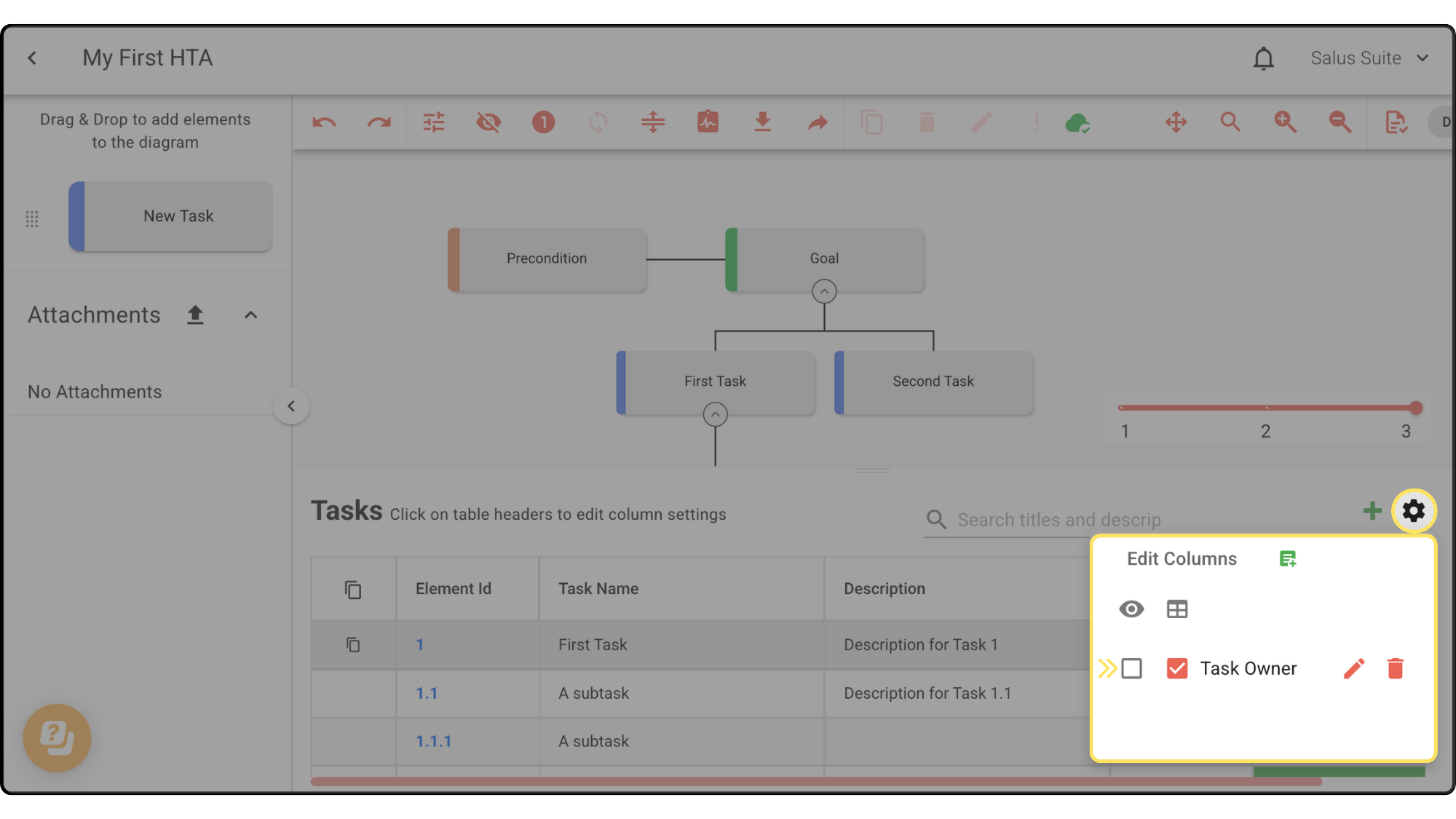
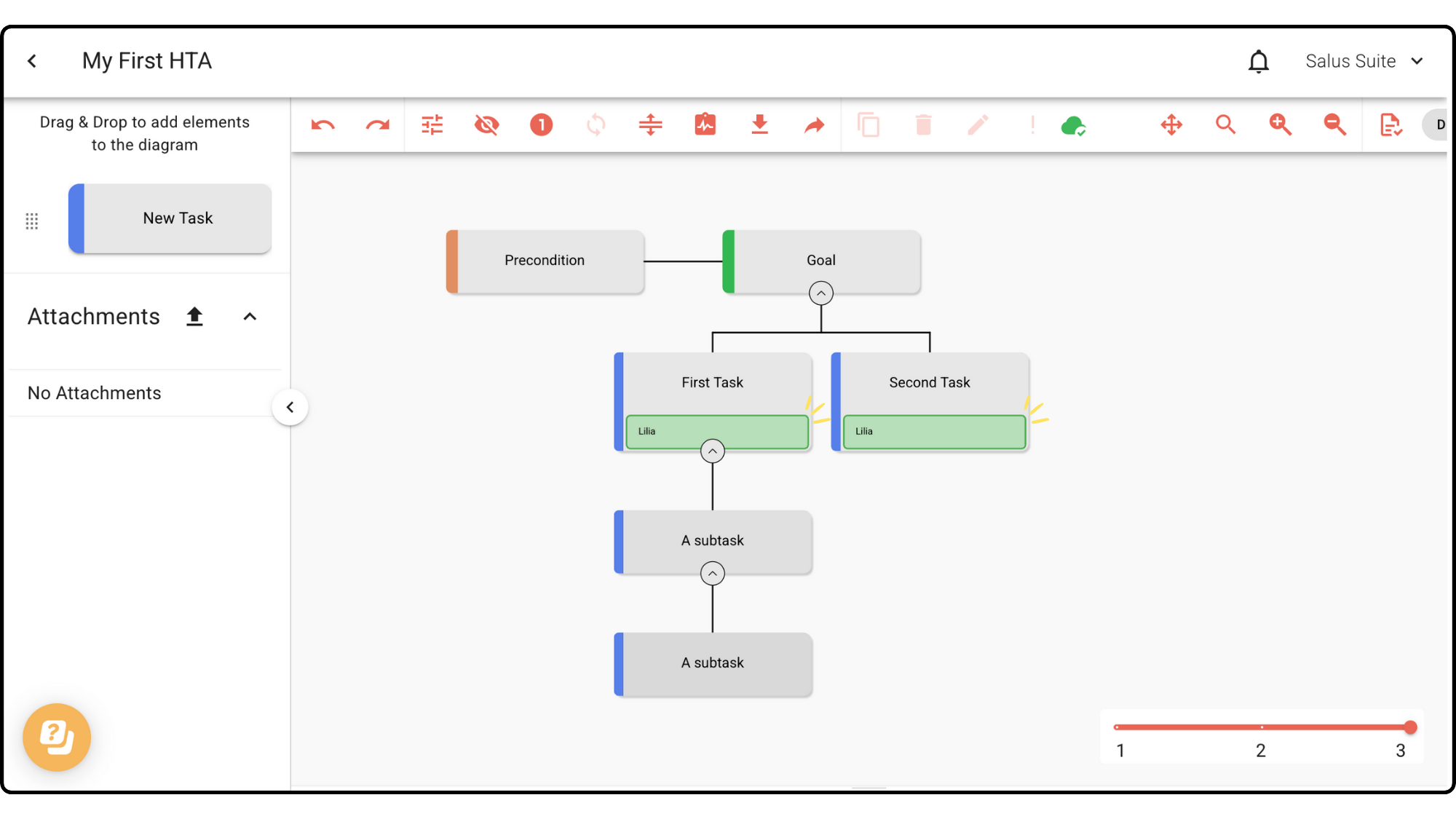
Metadata created in Safe Task can appear on both the table and the diagram. By default it’s assigned to the table only, but you can change this.
Step 1: Click the settings cog in the task table.
Step 2: Tick the first checkbox of the metadata you want to display.
This is how the metadata appears:
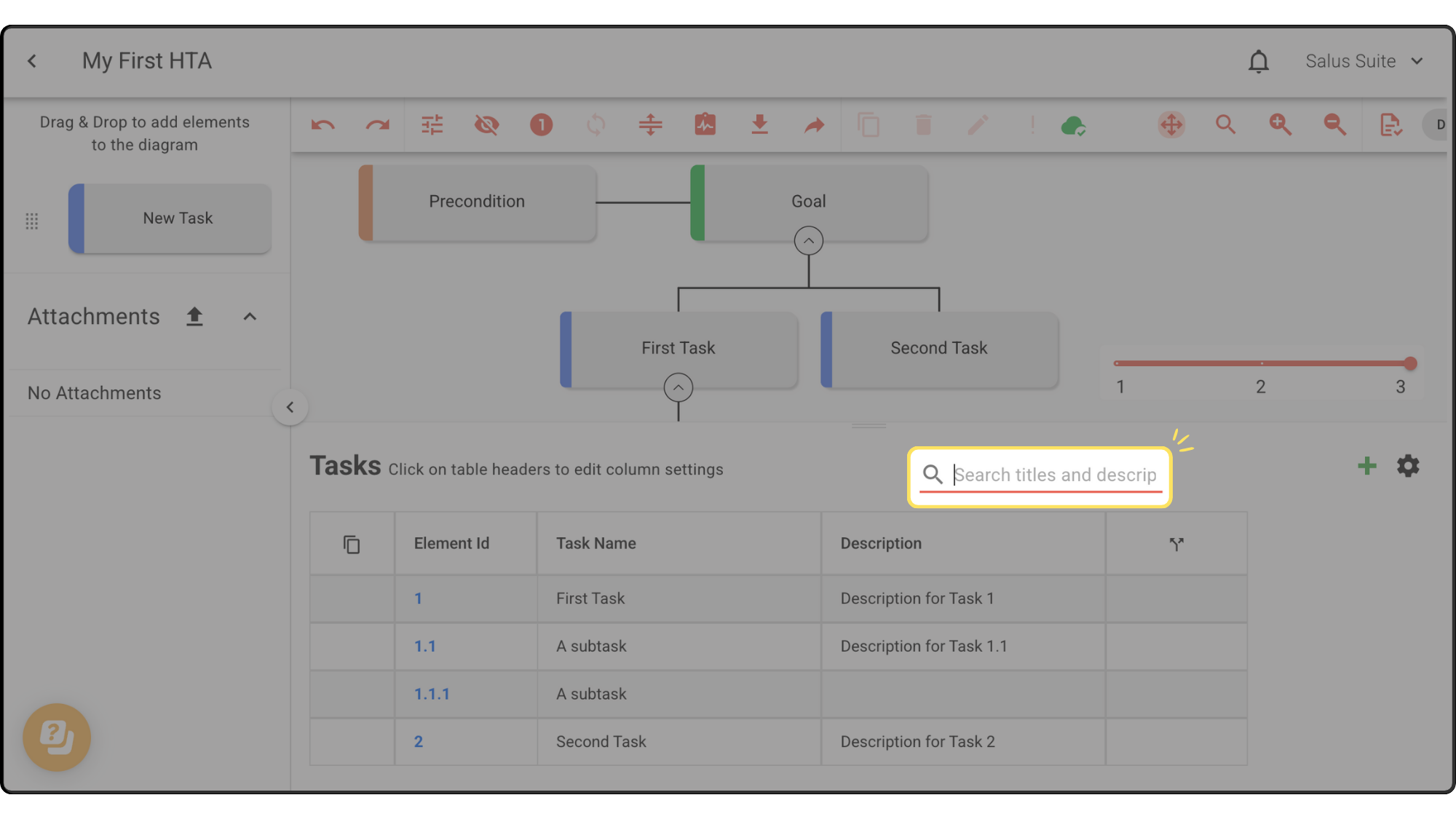
Search bar
The search bar in the Tasks table helps you find tasks or descriptions without scrolling the whole table.
Keyboard shortcuts
Safe Task includes shortcuts to help you navigate the table:
- Arrow keys - move around the table
- F2 - start editing a free-text cell
- Enter (during edit) - confirm the edit
- Escape (during edit) - cancel the edit
- Ctrl + F - start a search
- Escape (during search) - cancel the search