Notes and attachments
Add notes to an action
Each action has a Notes section where you and your team can add context, updates or comments. Notes are saved individually, so you don’t need to save the whole action.
Step 1: Open an action.
Step 2: In the Notes section on the left side of the action, type your note.
Step 3: Click SAVE.
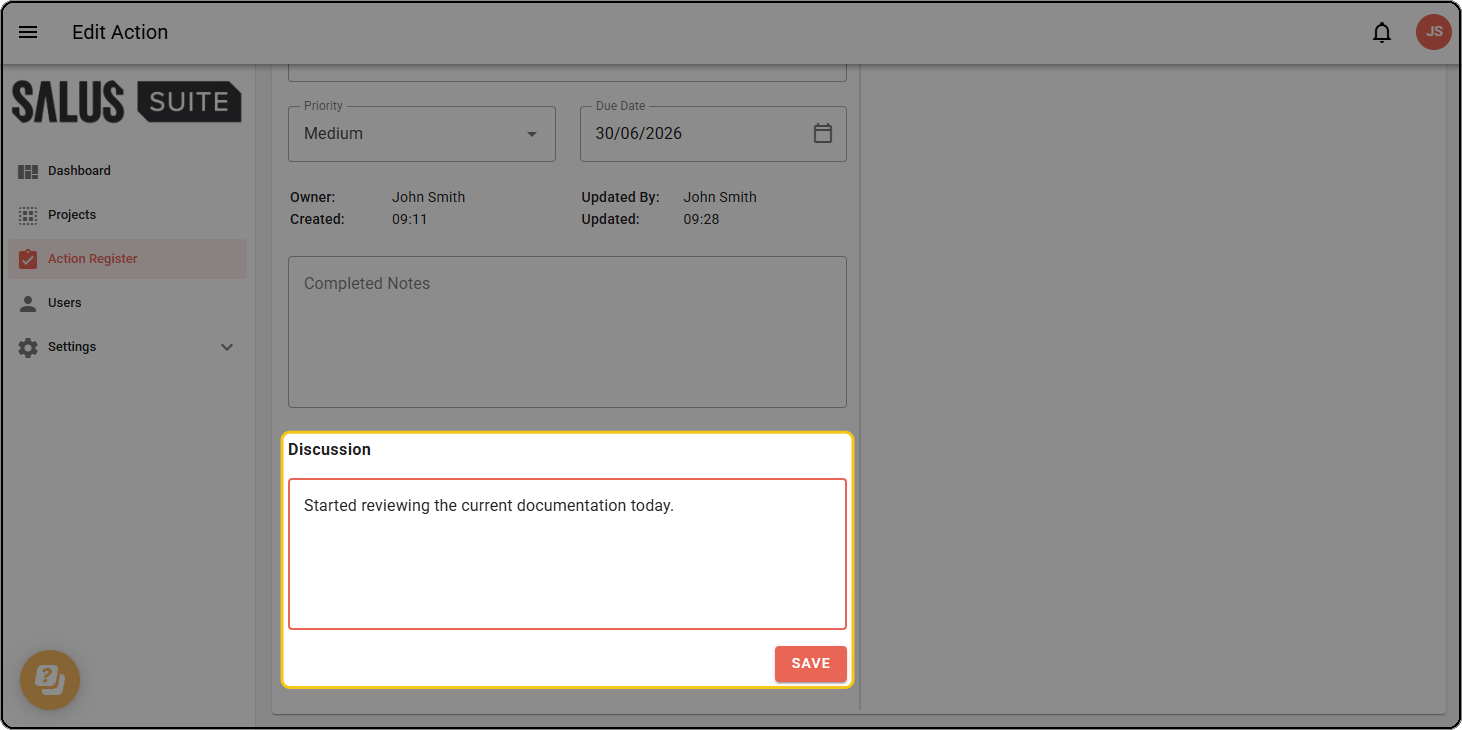
To edit a note, click the note text, make your changes and save. To delete a note, click the delete icon on the note and confirm.
Notes cannot be added to closed actions.
Manage attachments
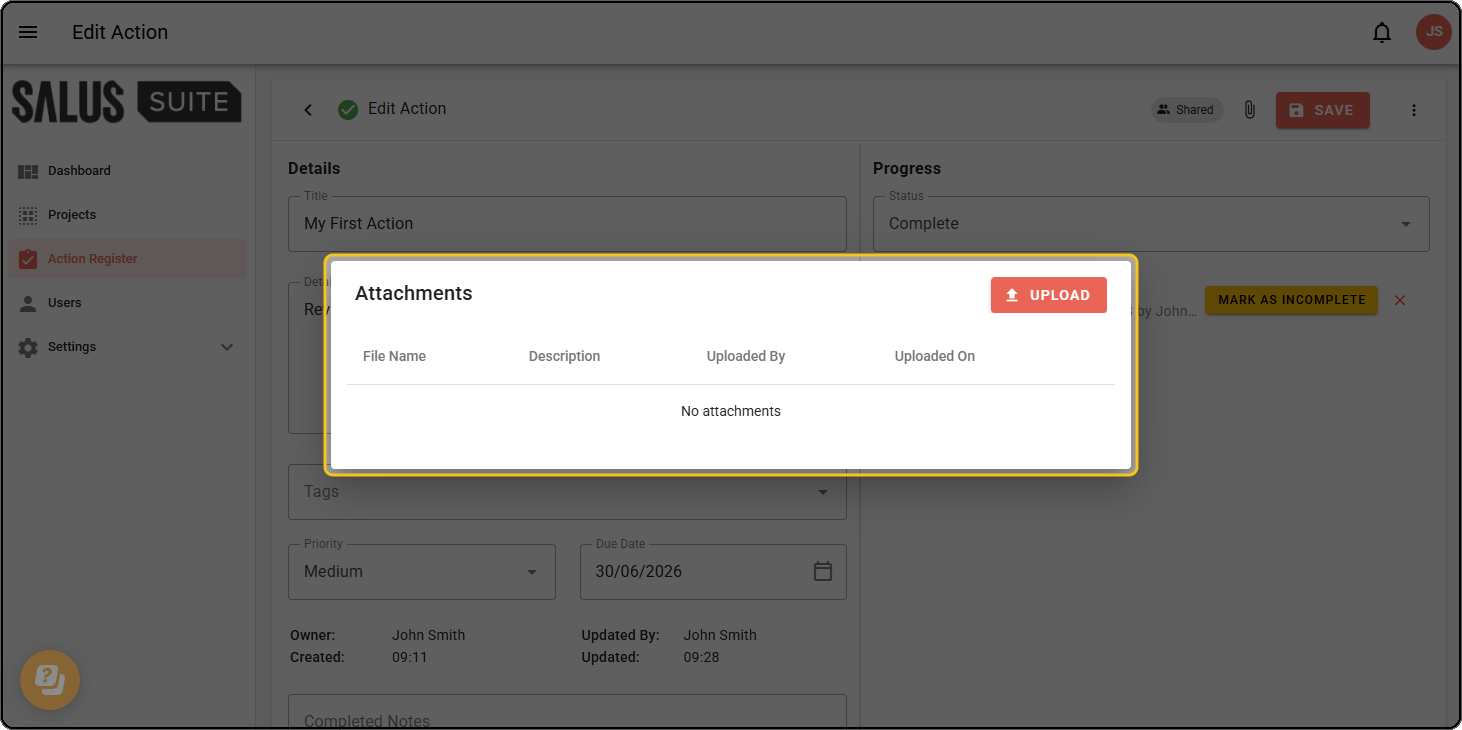
Attach files to any action using the Attachments feature.
Step 1: Open an action.
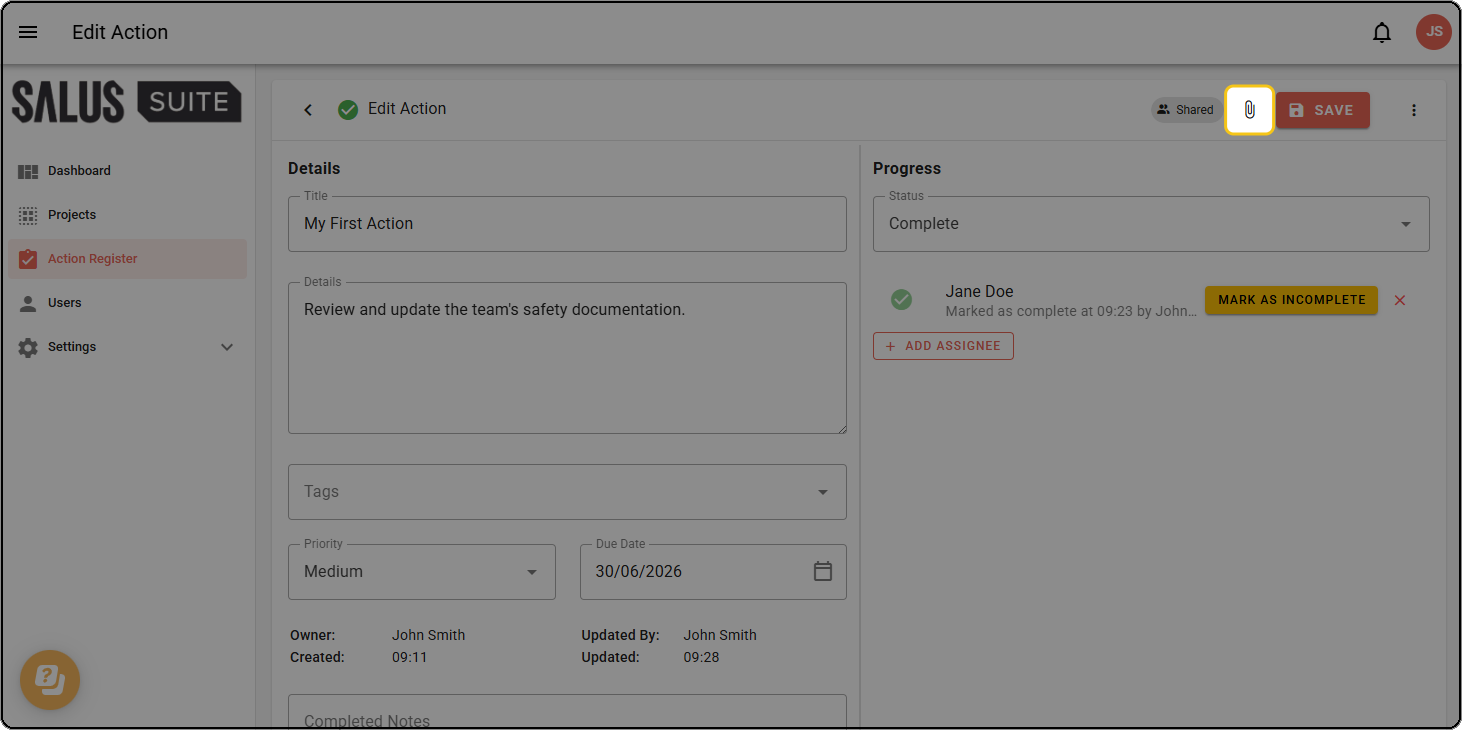
Step 2: Click the paperclip (📎) icon in the top-right corner. A badge on the icon shows the number of existing attachments.
Step 3: In the Attachments dialog, view existing attachments or upload new files. To delete an attachment, click the delete icon next to the file.