Tracking progress
The Salus Suite gives you several ways to track the progress of an action.
Setting a status
Each action has a Status field showing where it stands in the workflow. To update it, open the action and use the Status dropdown in the Progress section. The available statuses are:
- Not Started
- In Progress
- On Hold
- Complete
Tracking progress with % Complete
If an action has no assignees, set a progress percentage manually using the % Complete field in the Progress section. Enter a value between 0 and 100.
The % Complete field is only available when an action has no assignees. When assignees are present, progress is tracked through their individual completion status.
Closing and reopening an action
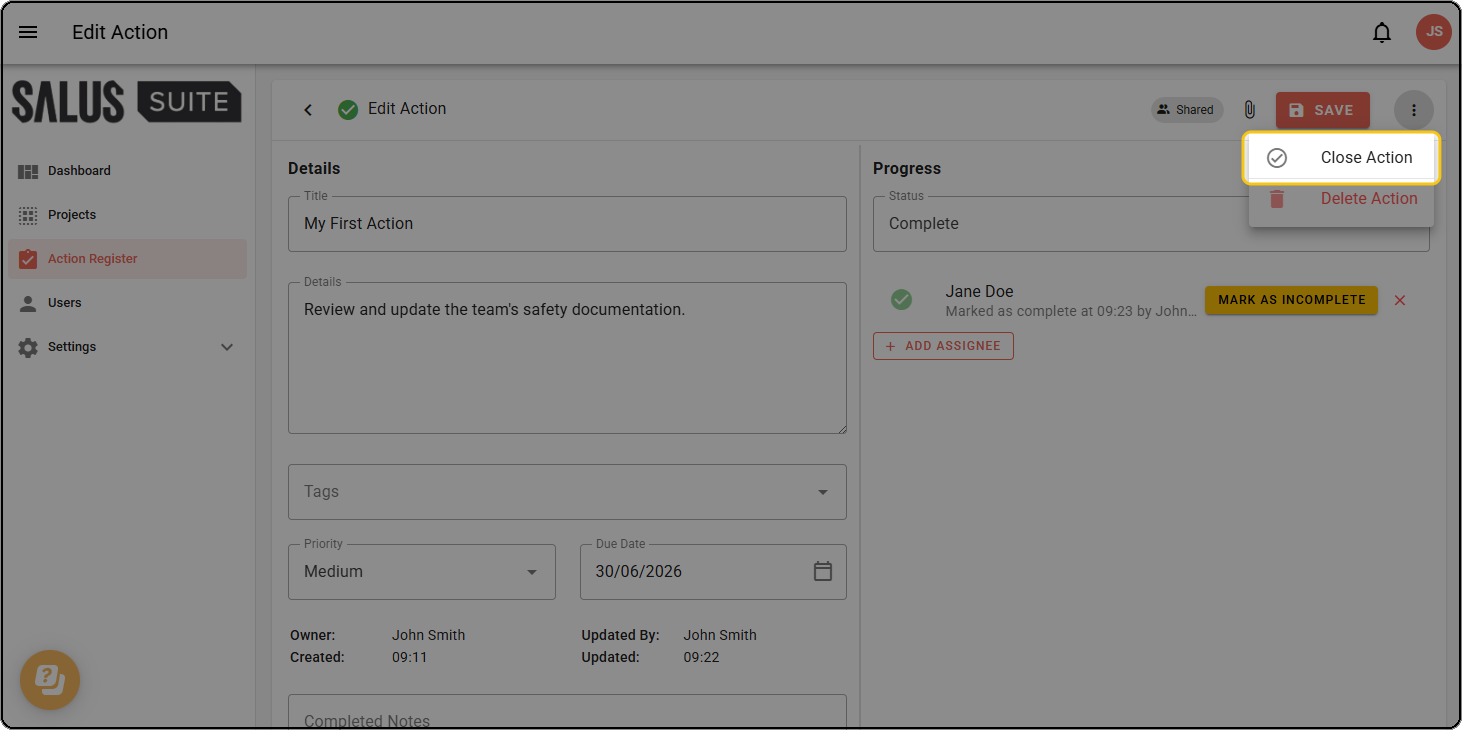
To close an action, open it, click the three-dots menu (⋮) in the top-right corner, then click CLOSE ACTION. The action is locked and cannot be edited.
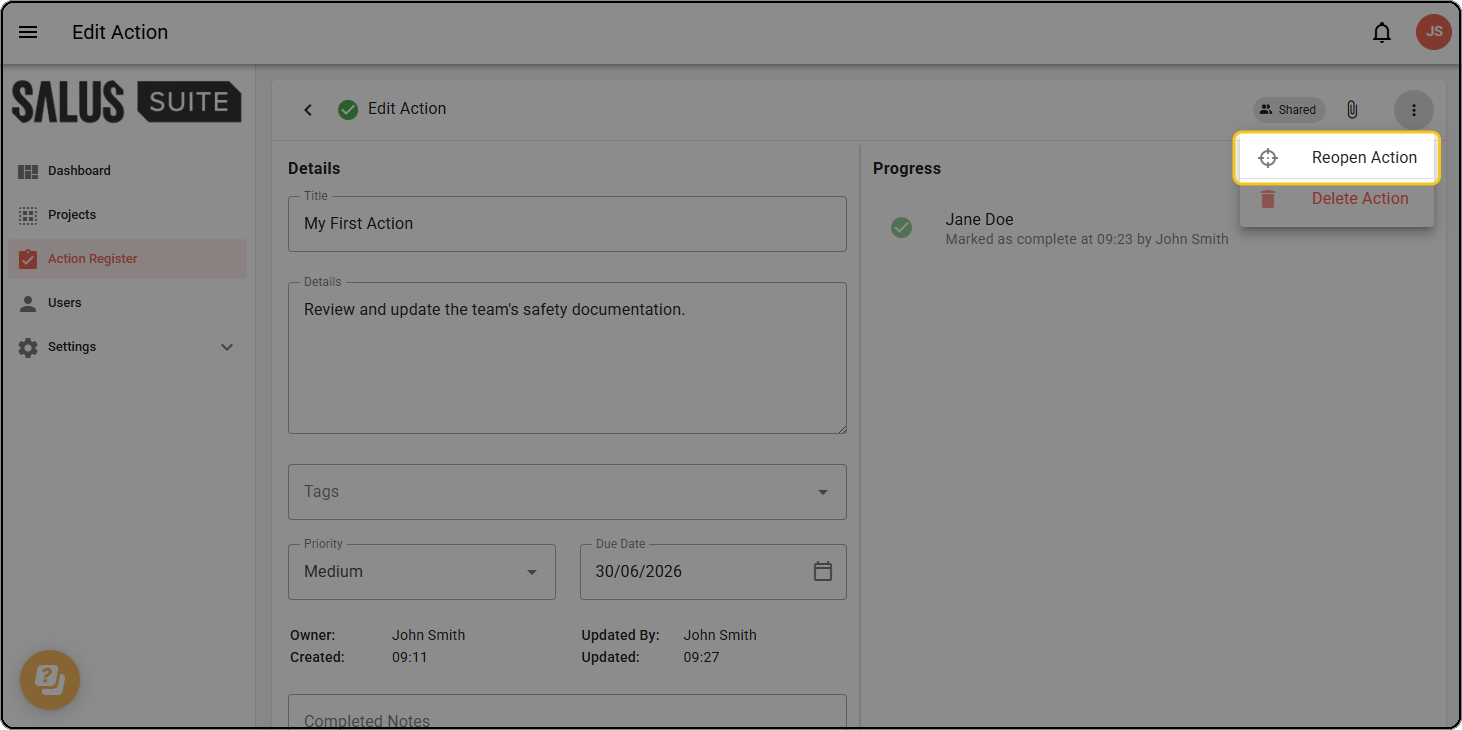
To reopen a closed action, click the three-dots menu (⋮) in the top-right corner, then click REOPEN ACTION. The action reopens and can be updated again.