API Access
This guide covers everything you need to integrate with the Salus Suite API. Whether you’re connecting diagrams to Power BI, retrieving information about your diagrams or users or upgrading your diagrams, it will help you get started quickly.
Base URL
Make all API requests to: https://publicapi.salus-suite.com/api
Access our Swagger documentation here: https://publicapi.salus-suite.com/index.html
Authentication
Authenticate using an API key. Include your key in an HTTP header with every request:
X-API-KEY: YOUR_API_KEY
Obtain your API key
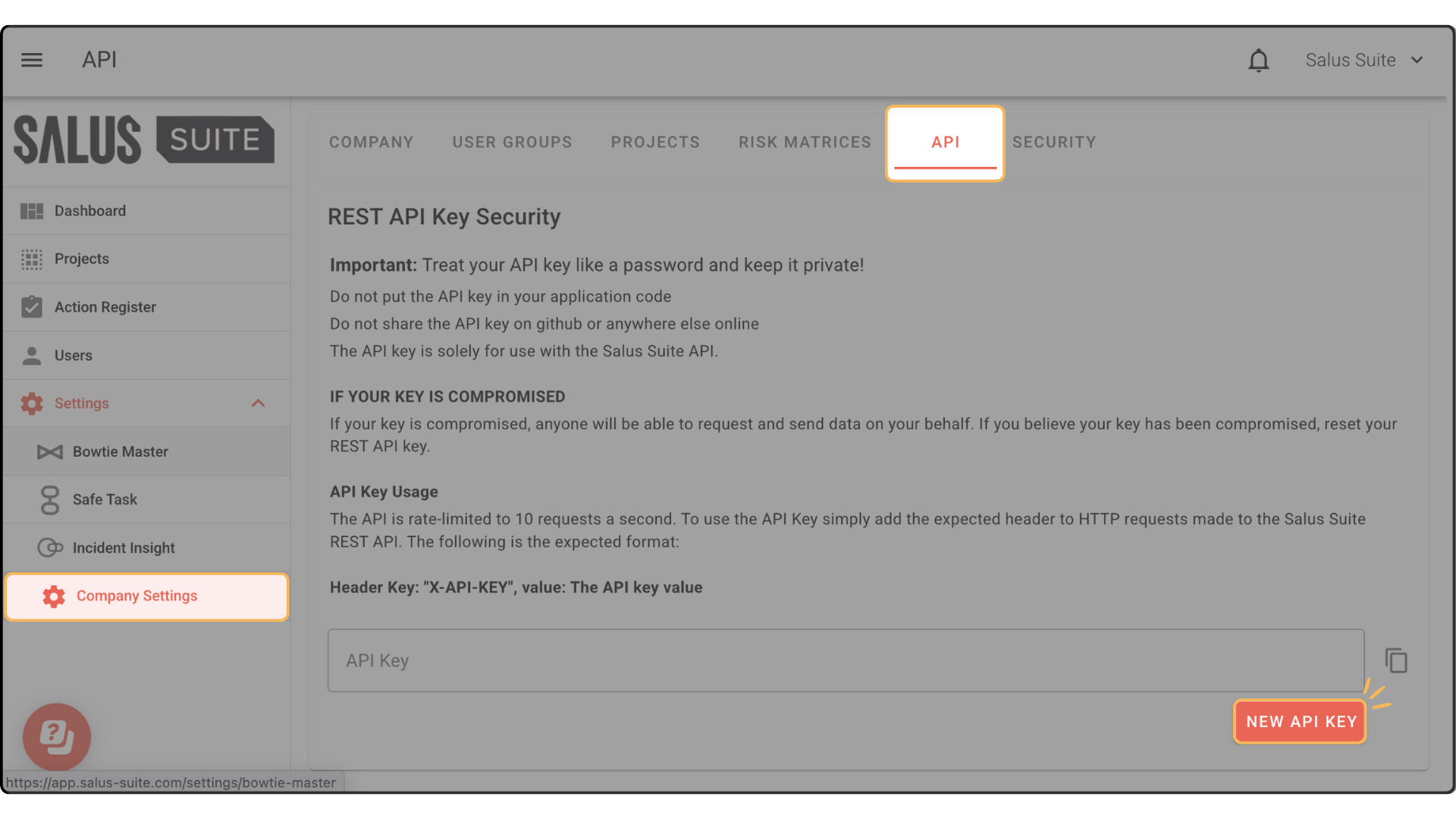
Step 1: Go to Settings > Company Settings > API.
Step 2: Click NEW API KEY. A new API key is generated.
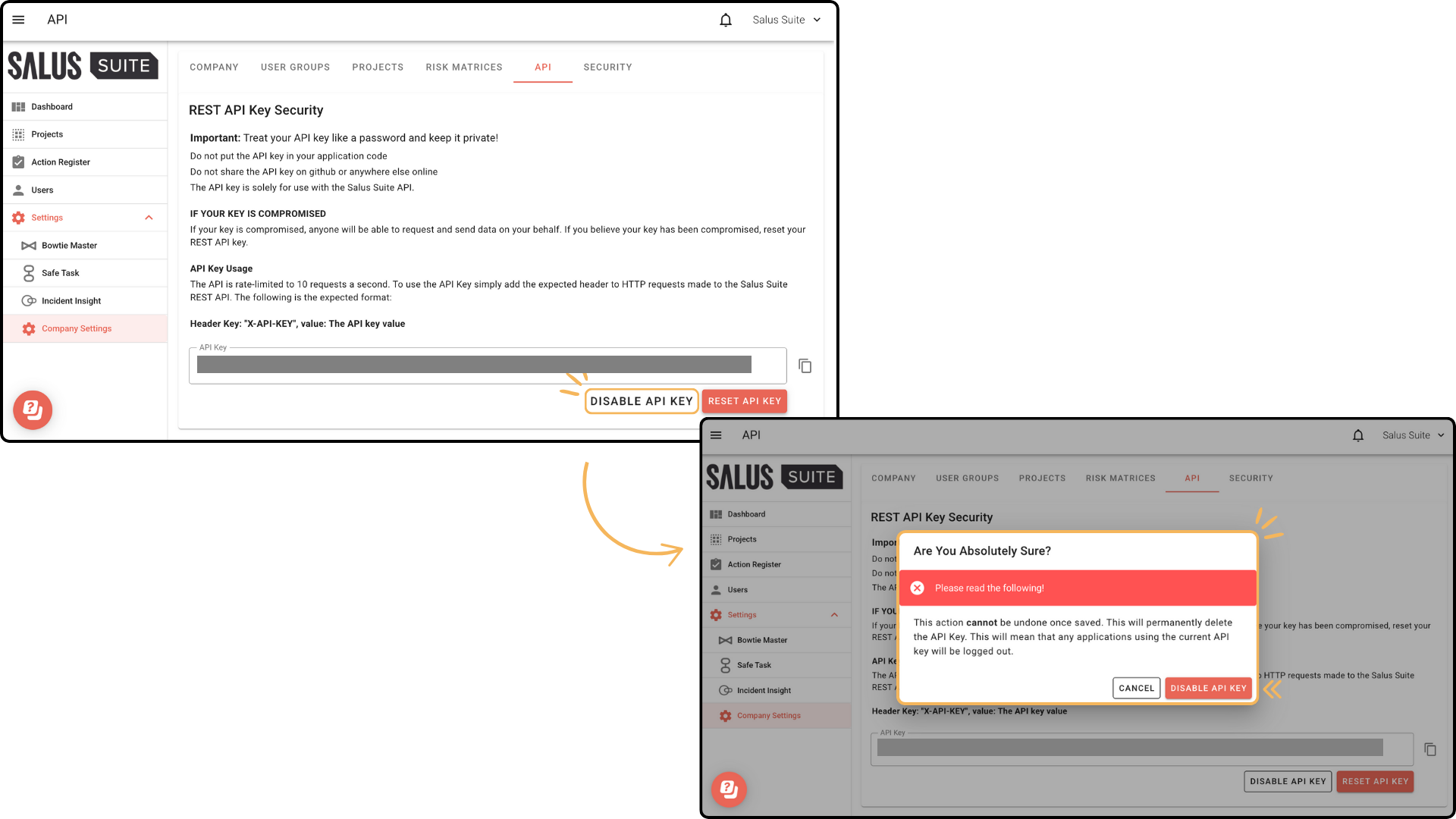
Step 3: To disable the key, click DISABLE API KEY, then click DISABLE API KEY in the warning message. Any application using the key is logged out.
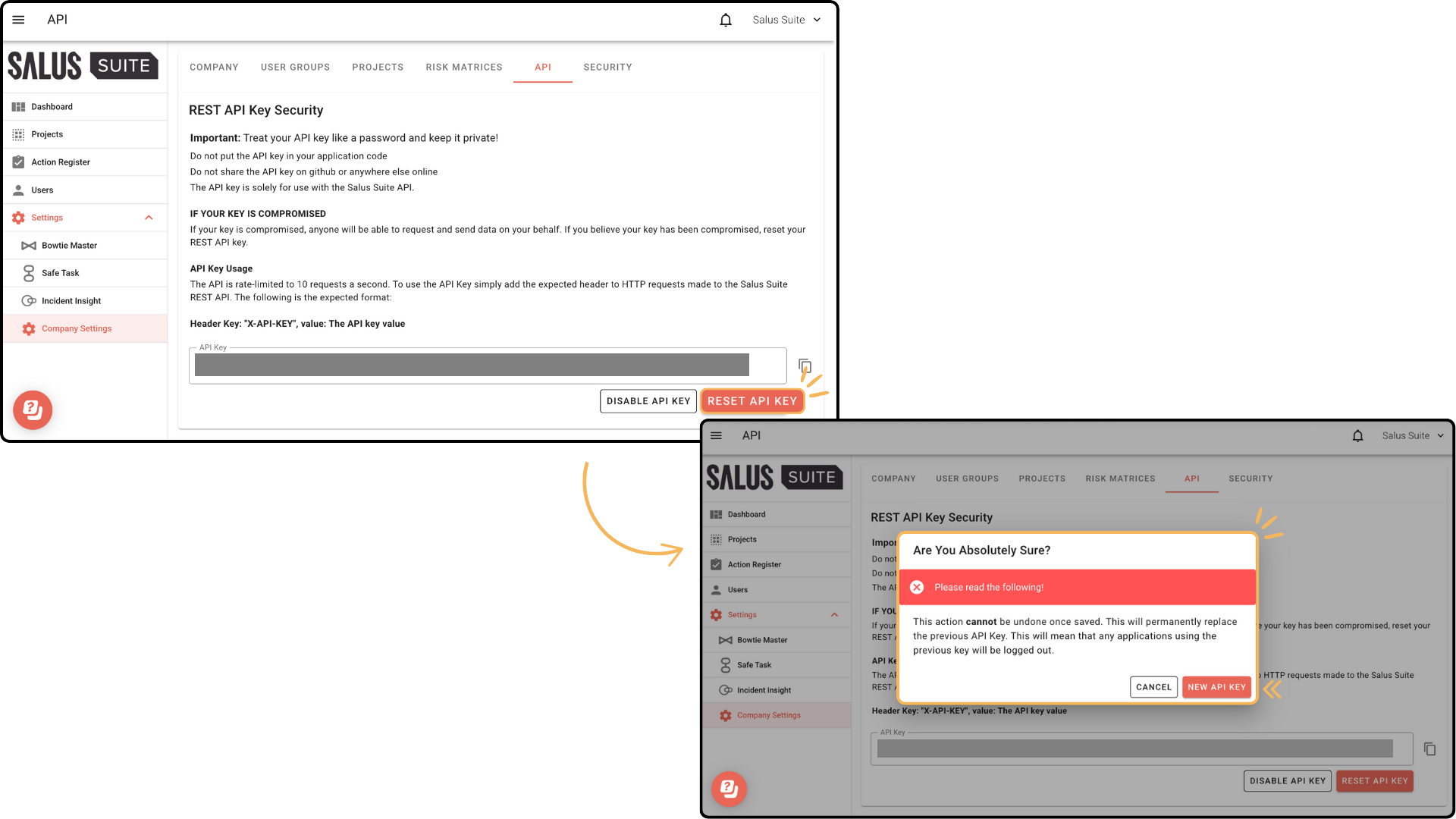
Step 4: To reset the key, click RESET API KEY, then click NEW API KEY in the warning message. Any application using the key is logged out.
Rate limits
The API is rate-limited to 10 requests per second to protect the quality of our services. If you exceed this, you receive a 429 Too Many Requests response. Contact support if you consistently hit this limit.
Errors
The API uses conventional HTTP response codes to indicate the success or failure of a request:
- 200 OK - the request was successful.
- 400 Bad Request - there was an issue with the request (missing parameters or invalid data).
- 401 Unauthorized - your API key was missing or incorrect.
- 404 Not Found - the requested resource does not exist.
- 429 Too Many Requests - you have hit the rate limit. Try again later.
- 500 Internal Server Error - a problem occurred on our server. Try again later.